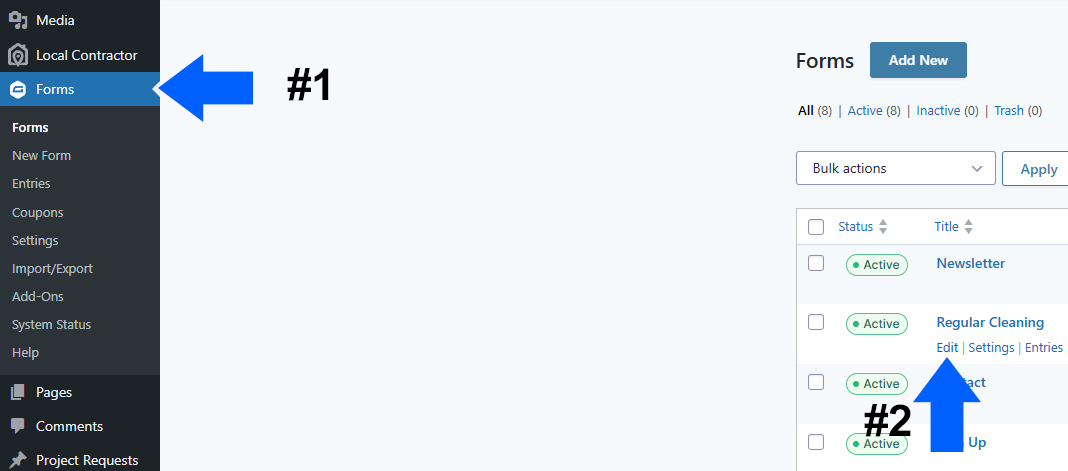
Log in to your website and click the Forms tab. Locate the form where you want to add sales tax, then click the Edit link.
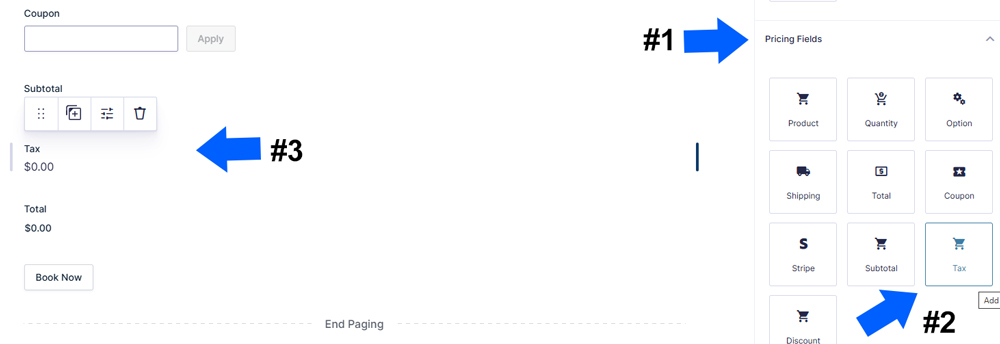
In the Add Fields panel on the right side of your screen, scroll down to the Pricing Fields section. Find the Tax field and drag it to the bottom of the form, placing it directly above the Total field.
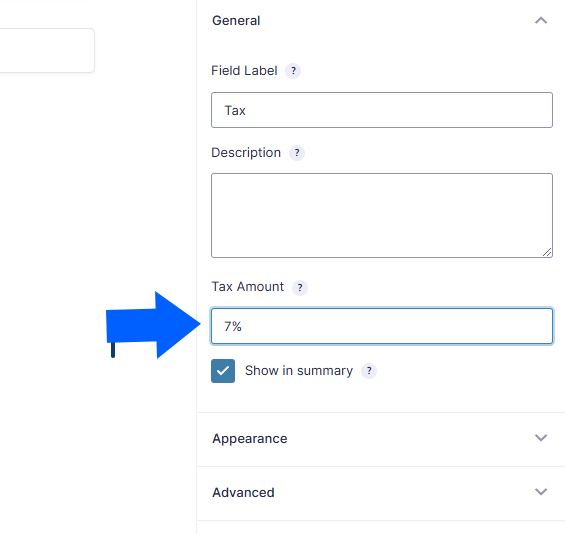
Click on the Tax field you just added to the form to open the settings panel. In the panel, enter the tax amount in the Tax Amount field.
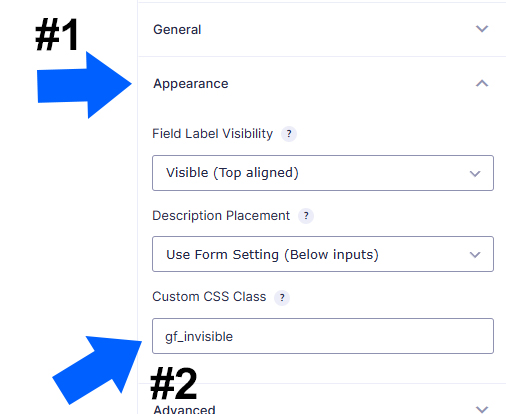
If your booking form already includes a booking summary that displays the subtotal and total, you should hide the Tax field from the main form and display it only in the booking summary. To do this, follow these steps:
- Click on the Appearance tab in the Tax field settings panel.
- In the Custom CSS Class field, copy and paste the following text:
- gf_invisible
This will ensure the tax field is hidden in the form but still shown in the booking summary.
You should now see the Tax field displayed in the booking summary section next to your booking form on the front end of your website.