Team bookings let you assign multiple people to the same appointment. This feature allows customers to book longer appointments while helping your business finish jobs faster by splitting the work among your team.
How team bookings works.
The system assigns extra employees only when one person doesn’t have enough time to complete the job alone. Here’s how it works:
Example 1: Dividing a Job
- You have two employees working 9:00 AM to 5:00 PM.
- A customer books a 10-hour appointment, which is longer than any single employee’s shift.
- The system splits the job: each employee gets 5 hours.
- Employee 1: 9:00 AM to 2:00 PM.
- Employee 2: 9:00 AM to 2:00 PM.
Example 2: Overlapping Schedules
- Employee 1 has an appointment from 9:00 AM to 12:00 PM.
- Employee 2 has an appointment from 2:00 PM to 5:00 PM.
- Both employees have 5 hours available, but at different times.
- A new 10-hour job is booked:
- Employee 1: Scheduled from 12:00 PM to 5:00 PM.
- Employee 2: Scheduled from 9:00 AM to 2:00 PM.
This feature helps maximize your team’s availability while making it easier for customers to book even longer appointments.
Enabling team bookings
Log into your website and go to Local Contractor > Settings. Next, click on the Booking tab.

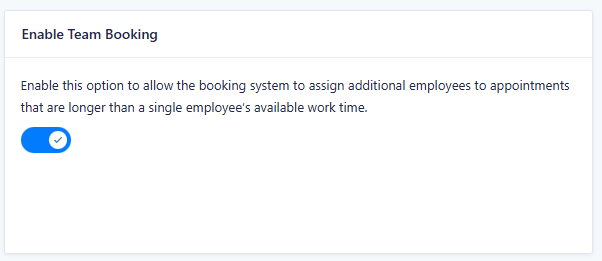
Locate the Enable Team Booking option and toggle the switch to on